If you’re searching for how to password protect a folder in Windows 11, encrypt files, secure private documents, or lock a large folder without constantly using ZIP archives, you’re definitely not alone.
I spent more time on this than I expected.
At first I thought Windows 11 probably had a simple “add password to folder” option somewhere. Turns out, it doesn’t really work that way. Most guides I found were either about hiding folders, using old batch-file tricks, or making password-protected ZIP files.
The problem was simple: I had a folder that changed all the time.
New files were being added, old files were being removed, and sometimes I needed to move large videos, backups or ISO files in and out. Rebuilding ZIP archives every time quickly became annoying.
After testing a few options, I ended up using VeraCrypt. This is not meant to be an official manual or anything like that. It is just the exact setup process I followed, with screenshots and a few notes about the parts that confused me at first.
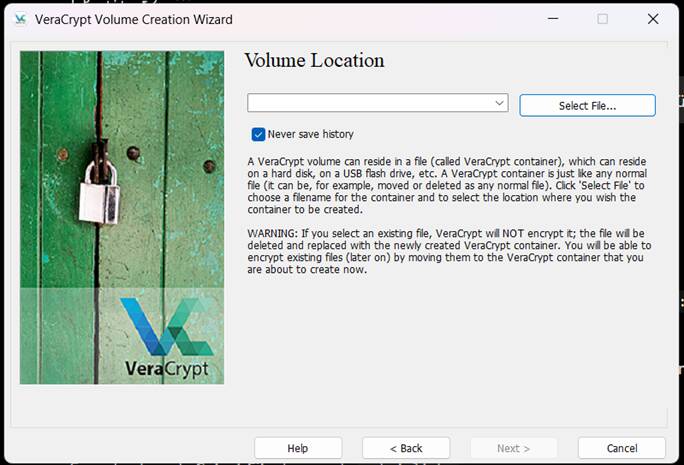
Installing VeraCrypt
Installation was pretty straightforward. I left most options at their defaults.
One thing worth mentioning is that VeraCrypt may recommend disabling Windows Fast Startup. A lot of people probably just click through that warning, but it is there to reduce possible problems with encrypted volumes, so I accepted it.
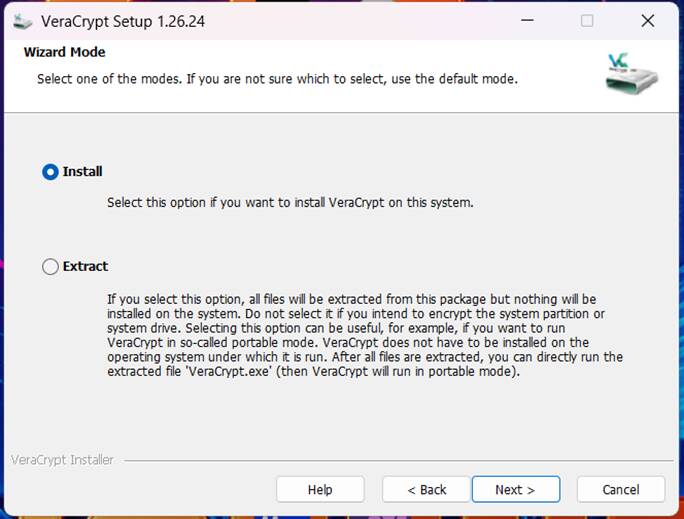
Choosing Standard or Hidden Volume
For most users, Standard VeraCrypt Volume is the right choice.
Hidden Volumes are designed for more specific situations and add extra complexity. I only needed a secure encrypted storage area for my files, so Standard Volume made more sense.
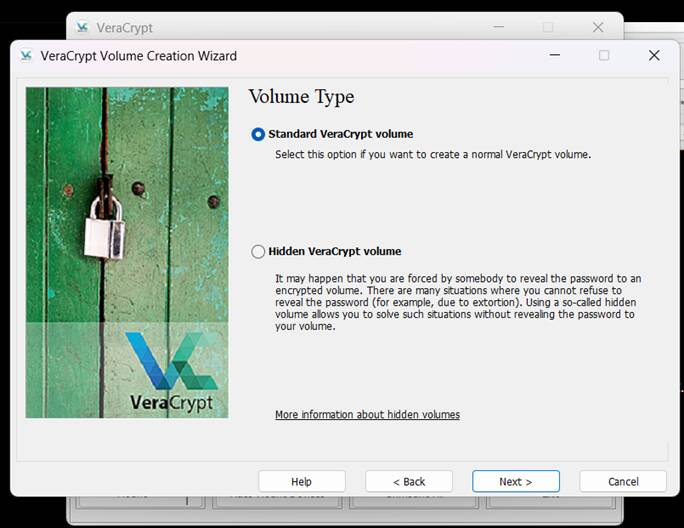
Creating the Encrypted Container
This was the first part that confused me a little.
You’re not selecting an existing folder and telling VeraCrypt to encrypt it directly. Instead, you create a new encrypted container file. Later, that file can be mounted as a virtual drive inside Windows.
So during this step, you need to choose any normal location on your PC and give the container file a name. For example, you can create a normal folder somewhere and save the VeraCrypt container file inside it. That file is basically your encrypted vault.
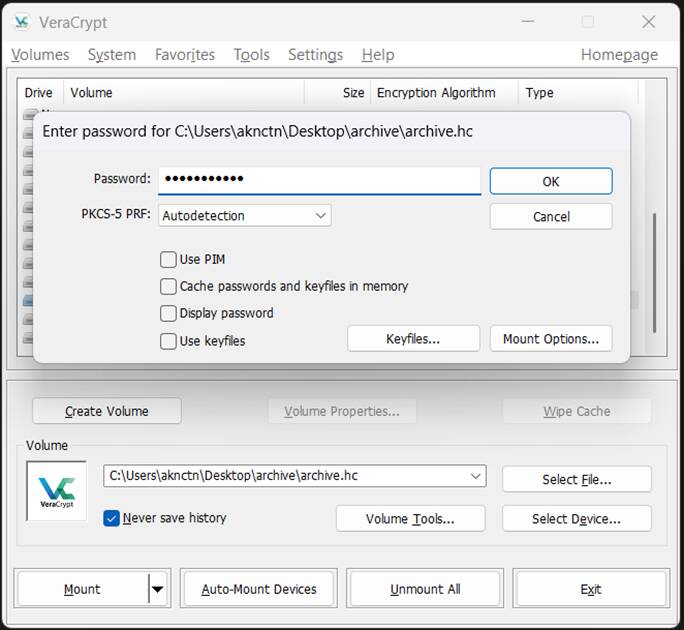
After the setup is finished, you can double-click that container file whenever you want to open it. VeraCrypt will launch, then you select an available drive letter and click Mount. After you enter your password, the encrypted drive appears in Windows Explorer like a normal drive.
You need to do this every time you want to access the encrypted files. When you’re done, go back to VeraCrypt and click Unmount or Unmount All to lock it again. The virtual drive disappears from Windows. To open it later, double-click the container file again, choose a drive letter, click Mount, and enter the password.
Once I understood this part, the whole thing made a lot more sense.
Encryption Settings
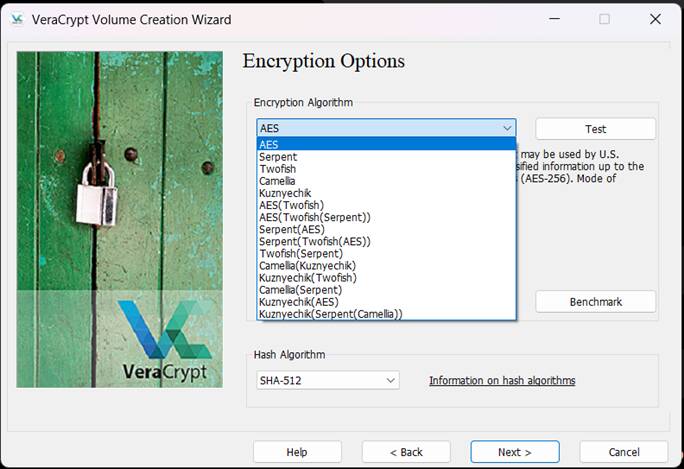
I kept the default AES encryption and SHA-512 hashing settings.
AES is widely trusted, fast enough for normal use, and more than enough for personal file protection. I didn’t see much reason to make this more complicated.
Choosing a Size
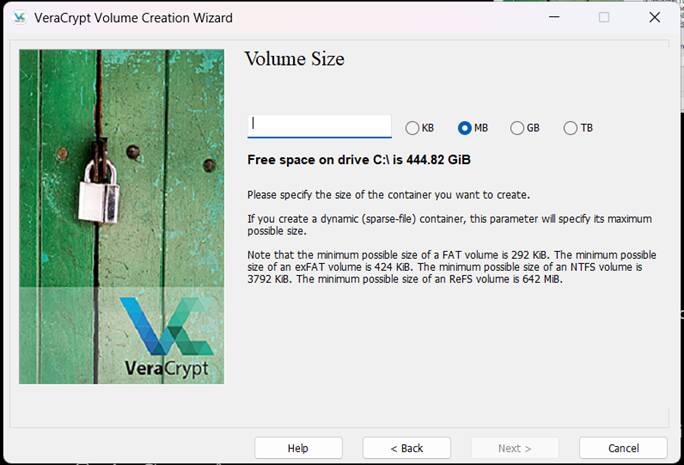
This step needs a bit of planning.
I selected 100 GB because I wanted enough space for documents, backups, videos and some larger files. If you’re only protecting documents, you can go much smaller. If you’re storing videos, game files or backups, it is better to think ahead.
You can expand things later, but it is not something I would want to deal with often.
Creating a Strong Password
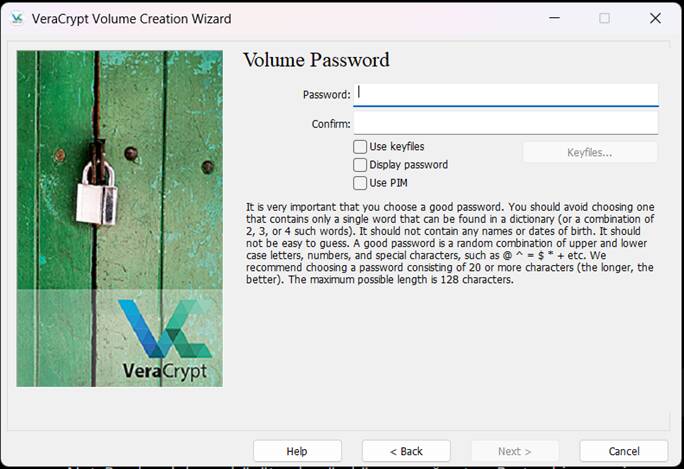
This is probably the most important screen in the whole process.
A long passphrase is usually better than a short password with random symbols. Use something you can remember, but don’t make it obvious.
Also, this part is serious: if you forget the password, there is no simple reset button. The files are basically gone unless you remember it.
Large File Support
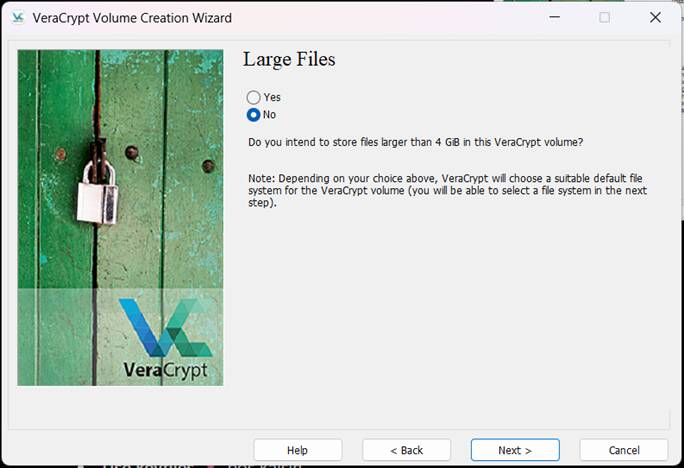
VeraCrypt asks whether you plan to store files larger than 4 GB.
I selected Yes because modern video files, backups, ISO images and game-related files can easily go above that size. For a large folder, this is usually the safer choice.
Formatting the Volume
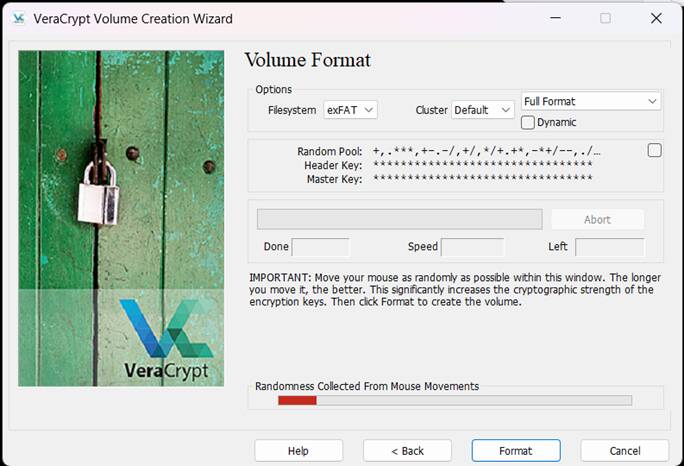
One thing that looked strange at first was the request to move the mouse randomly around the window.
VeraCrypt uses that movement to collect extra randomness while generating encryption keys. It feels a bit weird, but it is normal. I moved the mouse around for a short while and then clicked Format.
Mounting the Encrypted Drive
After the container was created, I selected a drive letter, mounted the container and entered my password.
Windows then displayed a completely new drive. From that point on, it behaved like a regular disk. I could create folders, copy files, delete files and work normally.
This is the part that made VeraCrypt useful for me. It doesn’t feel like you’re constantly dealing with an archive.
Why I Chose This Instead of ZIP Files
ZIP archives are fine if you’re storing something once and rarely touching it again.
But if the folder is changing often, ZIP gets annoying fast. Every time you add new files, you need to update the archive or rebuild it. With VeraCrypt, you just mount the encrypted drive and use it like normal.
For my case, this was much easier.
What Happens After Mounting?
This confused me at first too.
I expected Windows to ask for the password every time I opened a folder inside the encrypted drive. That’s not how it works.
The password is requested only when you mount the encrypted volume. Once mounted, the drive stays open and behaves like a normal drive until you unmount it.
When you unmount it, the drive disappears from Windows Explorer. After that, nobody can open it again without mounting it and entering the password.
VeraCrypt vs BitLocker
BitLocker is also a good option, especially if your goal is encrypting an entire drive.
VeraCrypt feels more flexible when you want a portable encrypted container. You can keep the container file on your PC, on an external drive, or even back it up somewhere else.
For a single large folder that changes often, VeraCrypt made more sense to me.
Frequently Asked Questions
Can someone open my files without the password?
Not realistically, assuming you use a strong password.
Can I store videos, ISO files or game backups?
Yes. Just enable support for files larger than 4 GB during setup.
Does Windows 11 have a real built-in folder password feature?
Not in the simple way most people expect.
What happens if I forget the password?
You lose access to the encrypted data. There is no normal password reset.
Can I use this on an external drive?
Yes. That is actually one of the common use cases.
Do I have to mount it every time?
Yes. Every time you want to access the files, you open the container, choose a drive letter, click Mount and enter your password.
How do I lock it again?
Use Unmount or Unmount All in VeraCrypt. Once unmounted, the drive disappears.
Final Thoughts
After trying a few Windows 11 folder protection methods, this was the first one that felt practical.
It doesn’t rely on hiding folders. It doesn’t force me to rebuild ZIP archives. It supports large files. And once mounted, it works like a normal drive.
If you’re searching for things like:
- how to password protect a folder in Windows 11
- Windows 11 file encryption
- secure private files on Windows
- VeraCrypt beginner guide
- folder password protection without ZIP archives
then hopefully this walkthrough saves you some time.
I’m sure there are other ways to do this, but for a large folder that changes frequently, this ended up being the method that worked best for me.
 A Quick Summary of Why This Works: