Indiana Jones and the Great Circle “Failed to Allocate Video Memory” Error — Best Fixes That Worked
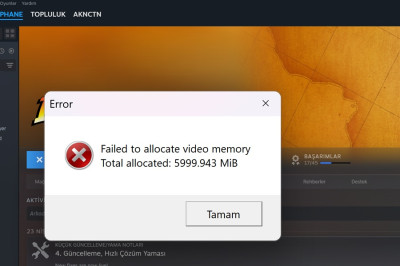
Indiana Jones and the Great Circle can sometimes crash with a pretty annoying VRAM-related error, especially after certain game updates or NVIDIA driver changes.
The error usually looks like this:
Failed to allocate video memory
Total allocated: xxxx MiB
At first, it looks like your graphics card does not have enough VRAM. But from what I tested, that is not always the real problem.
This error can happen even on systems that should technically run the game. In my case, the issue looked more related to NVIDIA driver behavior, aggressive VRAM allocation, and the game’s own driver version check.
After trying different fixes, the most reliable solution for me was this:
Rolling back to NVIDIA Driver 566.14.
 Main Fix: Roll Back to NVIDIA Driver 566.14
The biggest improvement came after installing NVIDIA Driver 566.14.
With newer NVIDIA drivers, the game kept throwing video memory errors. Lowering the graphics settings helped a little, but it did not fully solve the issue. In some cases, even touching texture or water quality settings could crash the game instantly.
After switching back to 566.14, the game became much more stable. I was able to raise some settings again and play around 30–45 FPS, depending on the scene and graphics options.
You can download NVIDIA Driver 566.14 here:
https://www.nvidia.com/en-us/drivers/details/235905/
If the page changes later, search for:
NVIDIA Driver 566.14 download
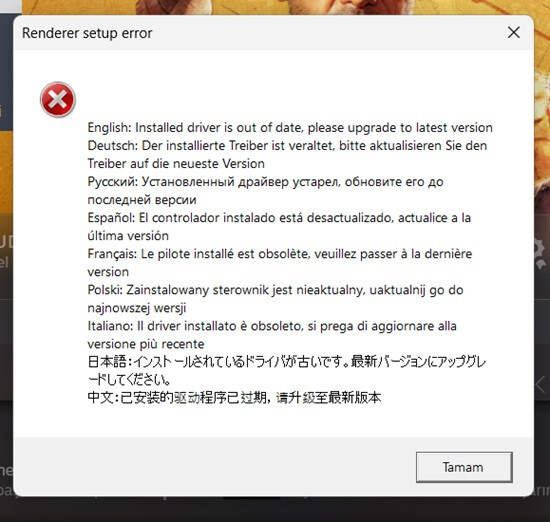
 If the Game Says Your Driver Is Out of Date
There is one extra problem.
After installing the older driver, Indiana Jones and the Great Circle may refuse to launch and say that your GPU driver is outdated.
This happens because the game checks the minimum supported driver version.
For Indiana Jones and the Great Circle, that check is inside this file:
vulkan_driver_versions.json
You can usually find it here:
C:\Program Files (x86)\Steam\steamapps\common\The Great Circle\base
Open the file with Notepad++ and look for the NVIDIA section.
You may see something like this:
"NVIDIA" : {
    "default" : {
        "lowest" : { "major" : 566, "minor" : 36, "patch" : 0 },
        "known_good_driver" : "https://www.nvidia.com/en-us/drivers/details/237719/",
        "bad_drivers" : []
The important part is this:
"lowest" : { "major" : 566, "minor" : 36, "patch" : 0 }
That means the game expects at least driver 566.36.
To allow NVIDIA Driver 566.14, change the minimum version to something lower, for example:
"lowest" : { "major" : 555, "minor" : 0, "patch" : 0 }
Save the file and launch the game again.
This does not improve performance by itself. It only bypasses the outdated driver warning so you can use the driver version that works better.
 Extra Fix: Lower the Game’s Pool Size
Before the driver rollback, one workaround that helped was editing the game’s local config file.
Go to:
C:\Users\YOUR-USERNAME\Saved Games\MachineGames\TheGreatCircle\base
Find this file:
TheGreatCircleConfig.local
Open it with a text editor and look for a line like this:
is_poolSize "3072"
The number may be different on your system.
Try lowering it to something like:
is_poolSize "900"
or:
is_poolSize "1000"
Save the file and launch the game again.
This can help the game open, but there is a downside: graphics settings may drop, and texture quality may become much lower.
For me, this was only a temporary workaround. The better fix was still the NVIDIA driver rollback.
 Try Safer Launch Settings
If the game crashes before you can reach the settings menu, try launching it with a lower resolution first.
In Steam:
Right-click the game → Properties → Launch Options
Add this:
-windowed -resx=1280 -resy=720
This may help the game start with lower initial memory usage.
Some people may suggest -dx11, but Indiana Jones and the Great Circle relies heavily on modern rendering features, so this may not work like it does in older games.
 Lower VRAM-Heavy Graphics Settings
If you can open the game, focus on settings that use the most VRAM:
- Texture quality
- Shadow quality
- Water quality
- Ray tracing / path tracing options
- Resolution scaling
- Upscaling settings
- Frame generation or extra GPU features
Do not increase everything at once.
Change one option, test the game, then continue. On the wrong driver, the game may crash as soon as you touch texture-related settings.
 Verify Game Files
This is basic, but still worth doing.
In Steam:
Right-click the game → Properties → Installed Files → Verify integrity of game files
This can repair missing or broken game files.
Important note: if you edited vulkan_driver_versions.json, Steam verification may restore the original file. If that happens, you may need to edit it again.
 Check Windows Virtual Memory
This is not the main fix, but it can help reduce memory-related crashes.
You can manually set Windows virtual memory to something like:
Initial size: 8192 MB
Maximum size: 16384 MB
If you are using an SSD and have enough free space, this is usually fine.
Still, do not expect this alone to fix the issue if the real problem is the NVIDIA driver or the game’s VRAM handling.
 What Seems to Be Causing the Error?
From what I tested, this does not look like a simple “your GPU is too weak” problem.
It seems more like a combination of:
- the game allocating VRAM too aggressively
- newer NVIDIA drivers causing problems in some cases
- limited VRAM on laptop GPUs
- driver version checks blocking older but more stable drivers
- recent game updates making the issue worse
That is why lowering the pool size can help temporarily, but rolling back to NVIDIA Driver 566.14 gave the best result.
Best Fix Order
If you are getting the Failed to allocate video memory error, I would try the fixes in this order:
- Install NVIDIA Driver 566.14
- If the game says the driver is outdated, edit
vulkan_driver_versions.json - Launch the game and test stability
- Lower texture, water and shadow settings only if needed
- If it still crashes, lower
is_poolSizeinTheGreatCircleConfig.local - Verify game files if something seems broken
- Adjust Windows virtual memory as a support step
Final Result
Before rolling back the driver, the game was almost unplayable for me. Even very low settings could still crash with the same video memory error.
After installing NVIDIA Driver 566.14 and editing the driver version check, the game became much more stable. I could raise some graphics settings again instead of being stuck at the lowest possible quality.
So yes, config tweaks can help.
But in my case, the real fix was:
NVIDIA Driver 566.14 + vulkan_driver_versions.json edit
If you are dealing with the same error in Indiana Jones and the Great Circle, I would start with the driver rollback before wasting hours lowering every graphics setting one by one.