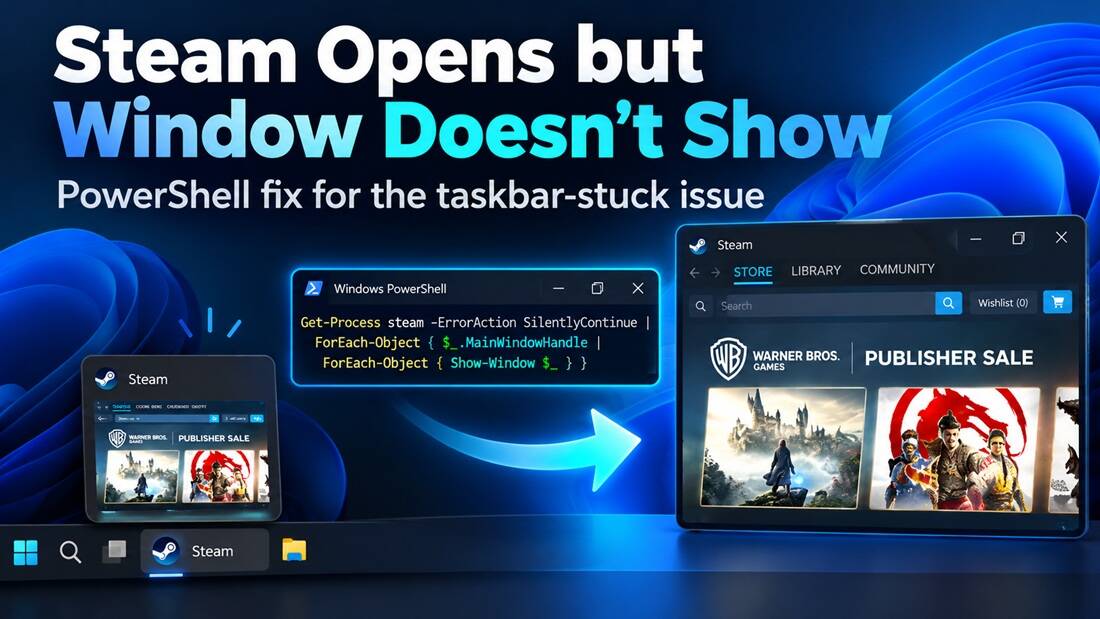
Why isn’t the Steam app showing up on my taskbar?
Steam is running, its icon appears on the Windows taskbar, and hovering over it shows a perfectly normal window preview. However, clicking the icon or thumbnail does nothing.
If your Steam client is running but its window won’t appear, you may be dealing with a Windows window-positioning or visibility issue rather than a Steam startup failure.
Here’s a PowerShell workaround that successfully restored the Steam window on a Windows PC after several conventional fixes failed.
1. Symptoms: Steam Is Running but Not Visible
You might notice the following:
-
Steam appears in the taskbar but won’t open on the desktop.
-
Hovering over Steam displays a live thumbnail of the Store or Library.
-
Clicking the taskbar icon or preview doesn’t restore the window.
-
Maximizing the window from the taskbar doesn’t work.
-
Restarting Steam or rebooting Windows doesn’t fix the problem.
The important clue is that Steam’s interface is visible in the taskbar thumbnail. This suggests that at least part of the interface has loaded, even though the main window is inaccessible.
2. Try These Quick Fixes First
Before running PowerShell, try the standard Windows shortcuts:
Windows + Left/Right Arrow
Attempt to snap the Steam window onto the visible desktop.
Windows + Shift + Left/Right Arrow
If you use multiple monitors, try moving the window between displays.
Alt + Space
With Steam selected, open the window menu and try Move or Maximize.
Taskbar Thumbnail
Right-click the Steam window preview and try Maximize or Restore.
If none of these methods work, continue below.
3. Working Fix: Force the Steam Window Back On-Screen Using PowerShell
This solution uses native Windows APIs to restore and reposition the Steam window.
Step 1: Leave Steam Running
Make sure Steam is still visible in the Windows taskbar.
Step 2: Open PowerShell
Open the Start menu, type PowerShell, and launch it.
Step 3: Paste and Run This Script
Copy the entire script below into PowerShell and press Enter.
Add-Type @"
using System;
using System.Runtime.InteropServices;
public class SteamWindowFix {
    [DllImport("user32.dll")]
    public static extern bool ShowWindow(IntPtr hWnd, int nCmdShow);
    [DllImport("user32.dll")]
    public static extern bool SetWindowPos(IntPtr hWnd, IntPtr after, int x, int y, int w, int h, uint flags);
    [DllImport("user32.dll")]
    public static extern bool SetForegroundWindow(IntPtr hWnd);
}
"@

$windows = @(Get-Process -Name steam,steamwebhelper -ErrorAction SilentlyContinue |
    Where-Object { $_.MainWindowHandle -ne 0 })

foreach ($p in $windows) {
    $h = $p.MainWindowHandle
    [SteamWindowFix]::ShowWindow($h, 9) | Out-Null
    [SteamWindowFix]::SetWindowPos($h, [IntPtr]::Zero, 100, 100, 1200, 750, 0x0040) | Out-Null
    [SteamWindowFix]::SetForegroundWindow($h) | Out-Null
    Write-Host "Window moved: $($p.ProcessName) - $($p.MainWindowTitle)"
}

if ($windows.Count -eq 0) {
    Write-Host "No Steam main window handle found."
}
Step 4: Check the Desktop
If Windows can access a suitable Steam window handle, the script attempts to:
-
Restore the window from its previous display state.
-
Move it to position
100, 100on the desktop. -
Resize it to
1200 × 750pixels. -
Bring it into the foreground.
Tested result: On the affected PC, Steam immediately became visible again after running this script.
Reinstalling Steam was not necessary.
4. How Does the PowerShell Fix Work?
The script interacts directly with the Windows window-management system.
| Function | Purpose |
|---|---|
MainWindowHandle |
Identifies the main window associated with a Steam process |
ShowWindow |
Requests that Windows restore the window |
SetWindowPos |
Changes the window’s position, dimensions, and visibility |
SetForegroundWindow |
Attempts to bring the window into focus |
The script does not delete Steam files, modify installed games, or reset your Steam account.
It only attempts to manipulate existing application windows.
5. What If the Problem Comes Back?
After restoring the window, exit Steam completely and launch it again.
If the issue returns, investigate Windows display scaling, resolution changes, disconnected monitors, and multi-monitor layouts.
If the script reports that no Steam window handle was found, the client may not have created an accessible main window. In that situation, this particular workaround may not apply.
6. Does This Work on Windows 10 and Windows 11?
The commands rely on Windows APIs available in both Windows 10 and Windows 11.
However, successful restoration depends on the Steam window actually existing and being accessible to the current user session.
This is a workaround for a specific Steam window not showing / Steam stuck in taskbar problem, not a universal fix for every Steam launch failure.
Technical References
Have you experienced Steam opening in the background without displaying its main window? Share whether this PowerShell workaround restored your client or if you found another solution.